Cursor Integration
Use LLM Gateway with Cursor IDE — supported in plan mode only. Cursor's coding agent does not work with external OpenAI-compatible endpoints.
Cursor is an AI-powered code editor built on VSCode. You can point Cursor's custom OpenAI base URL at LLM Gateway to use any of our 210+ models for plan mode (the chat / planning panel).
Plan mode only. Cursor's coding agent (Composer, inline edit, autocomplete, apply/edit) does not work with external OpenAI-compatible endpoints — those features are locked to Cursor's own backend and will not route through LLM Gateway. Only the chat / plan panel honors the custom API key + base URL. If you need a full coding agent backed by LLM Gateway, use Claude Code, Codex CLI, Cline, Continue CLI, or Hermes Agent instead.
Prerequisites
- An LLM Gateway account with an API key
- Cursor IDE installed
- Basic understanding of Cursor's AI features
Setup
Cursor supports OpenAI-compatible API endpoints, making it easy to integrate with LLM Gateway.
Get Your API Key
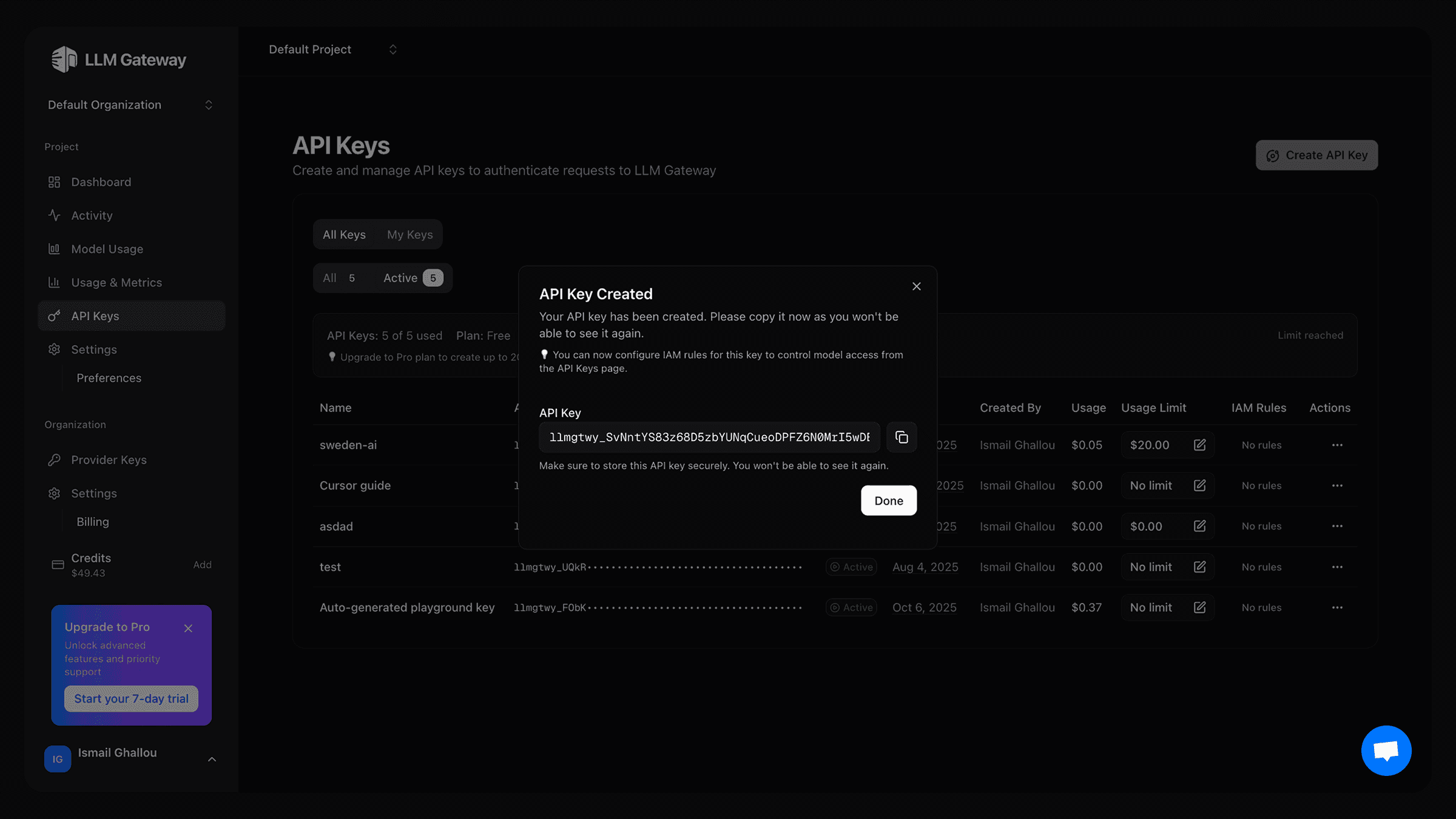
- Log in to your LLM Gateway dashboard
- Navigate to API Keys section
- Create a new API key and copy the key
Configure Cursor Settings
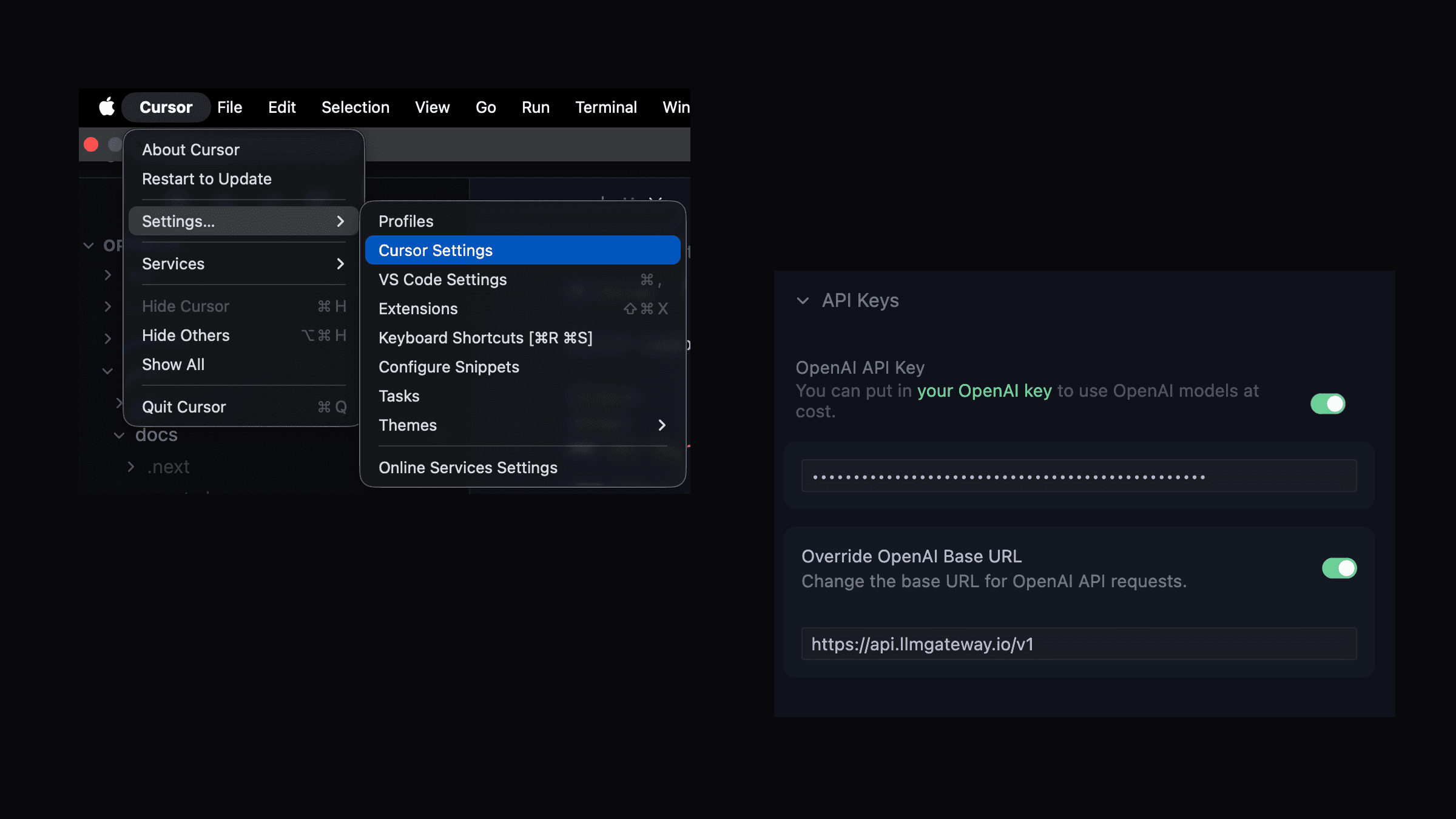
- Open Cursor and go to Settings then Click on "Cursor Settings"
- Click on "Models"
- Click on "Add OpenAI API Key"
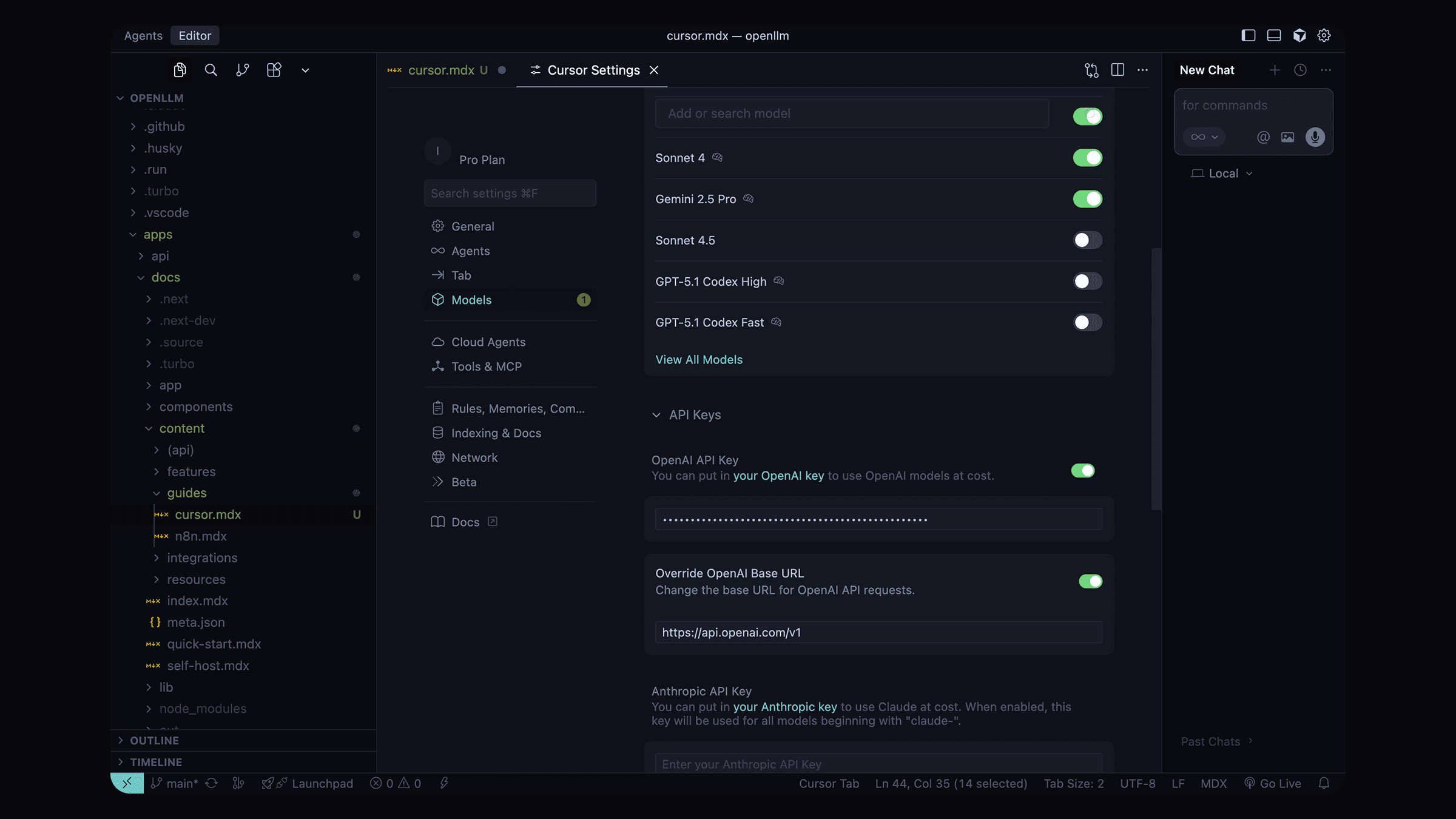
- Scroll down to OpenAI API Key section
- Click on Add OpenAI API Key
-
Enter your LLM Gateway API key
-
In the same Models settings, find the Override OpenAI Base URL option
-
Enable the override option
-
Enter the LLM Gateway endpoint:
https://api.llmgateway.io/v1
Select Models
- In the Models section, you can now select from available models
- Choose any LLM Gateway supported model:
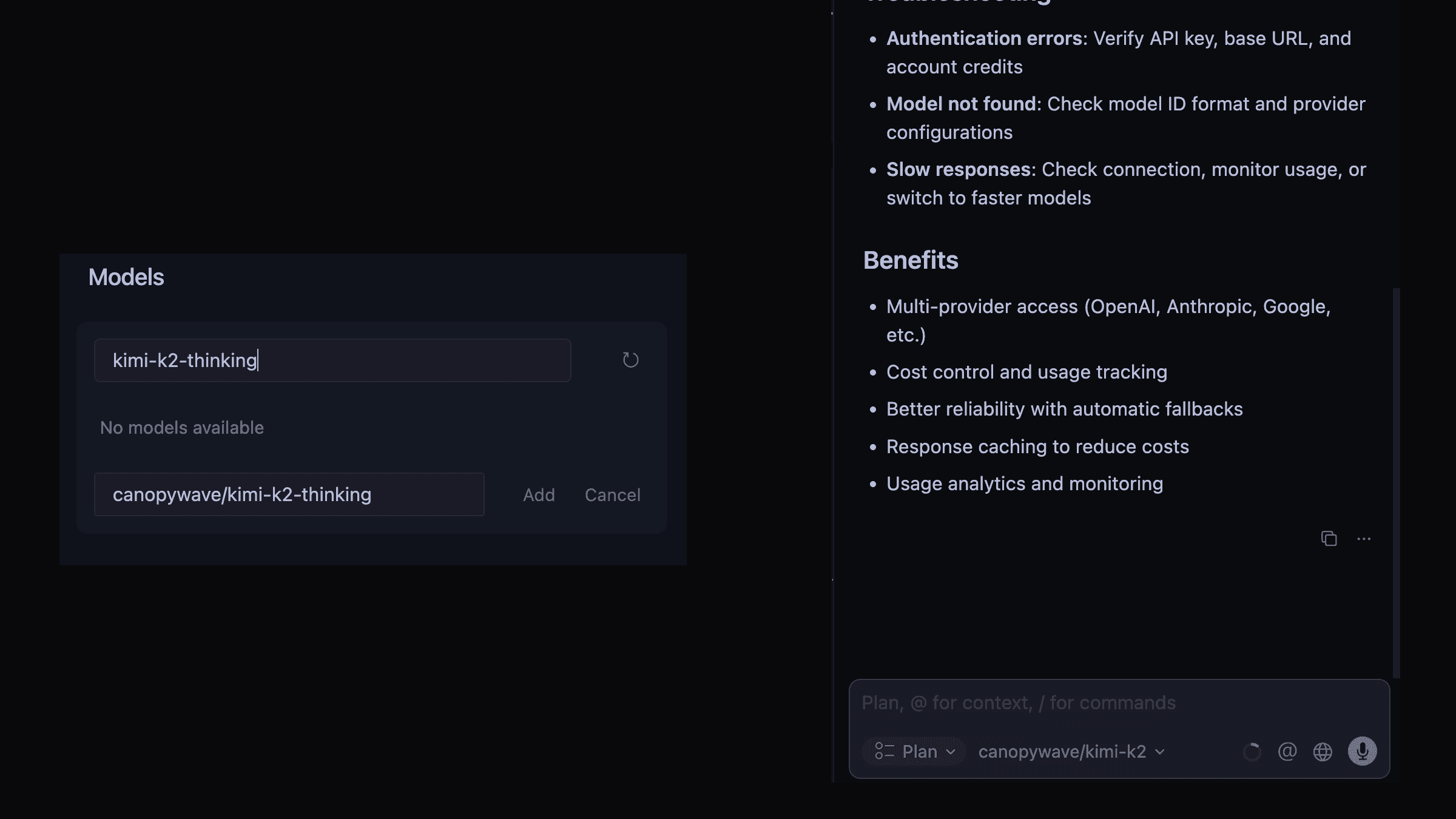
- For chat: Use models like
gpt-5,gpt-4o,claude-sonnet-4-5 - For custom models: Add the provider name before the model name (e.g.
custom/my-model) - For discounted models: copy the ids from from the models page
- For free models: copy the ids from from the models page
- For reasoning models: copy the ids from from the models page
Test the Integration
- Open any code file in Cursor
- Try using the AI chat (Cmd/Ctrl + L)
- Or test the autocomplete feature while typing
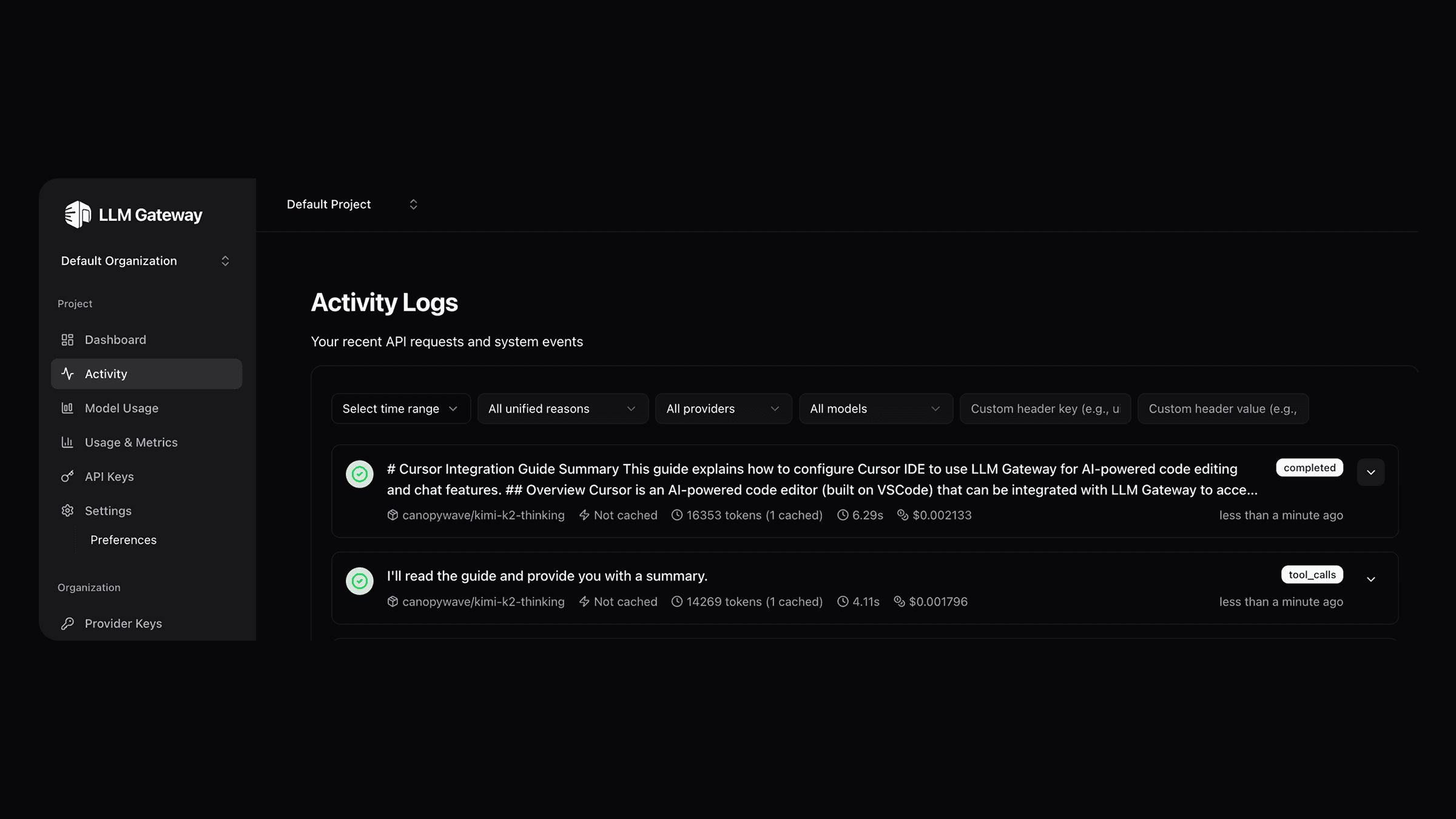
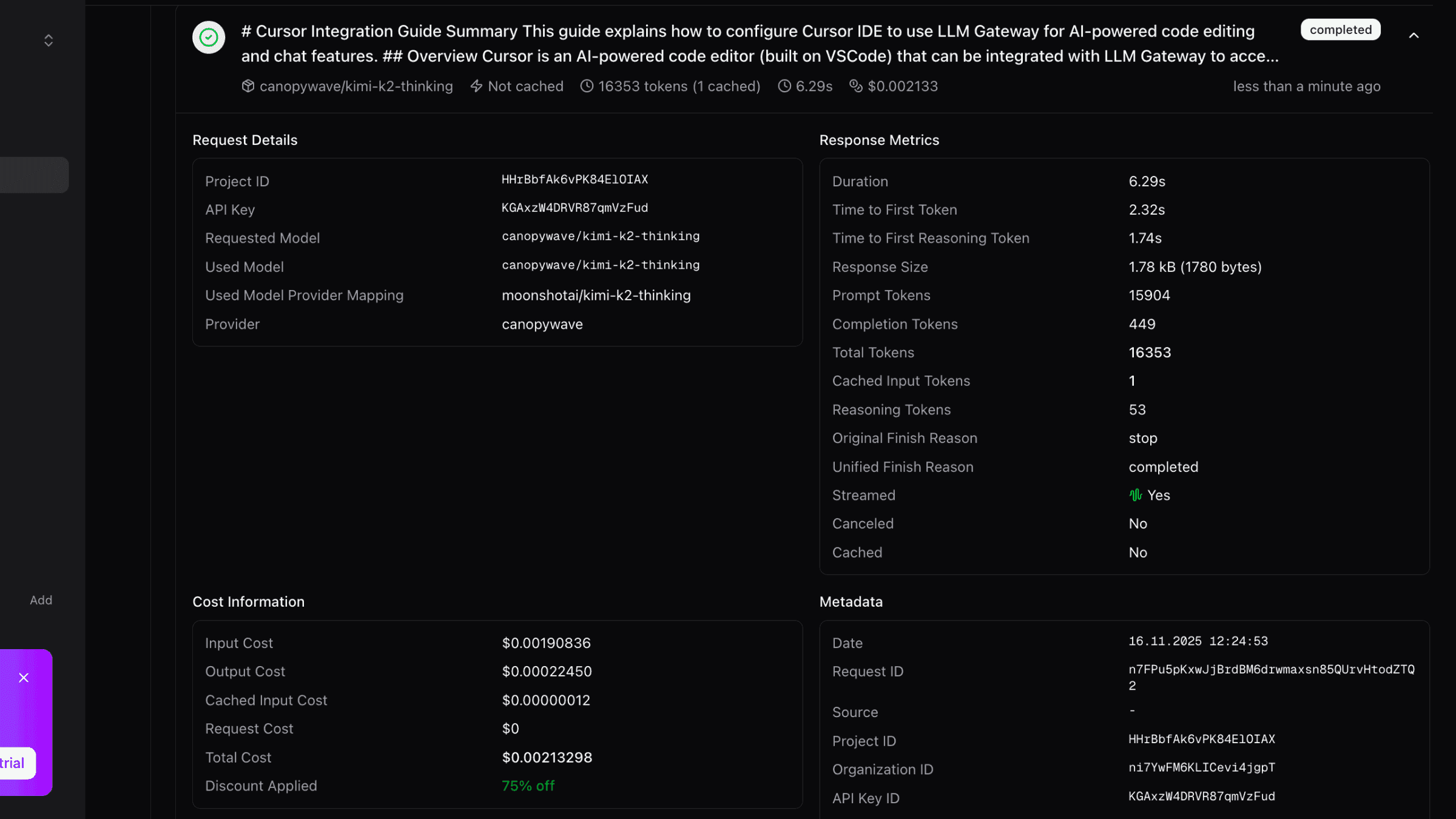
All AI requests will now be routed through LLM Gateway.
What Works (and What Doesn't)
Cursor only honors the custom OpenAI base URL for plan mode — the chat / planning panel (Cmd/Ctrl + L). Everything else still uses Cursor's own backend, even after you save the LLM Gateway key.
Works through LLM Gateway
- AI Chat / Plan mode (Cmd/Ctrl + L) — Ask questions, plan changes, get explanations, debug. All requests route through LLM Gateway and appear in your dashboard.
Does NOT work through LLM Gateway
- Composer / Coding agent — Locked to Cursor's backend.
- Inline Edit (Cmd/Ctrl + K) — Locked to Cursor's backend.
- Autocomplete / Tab completion — Locked to Cursor's backend.
- Apply / Edit suggestions — Locked to Cursor's backend.
If you need a full coding agent that routes through LLM Gateway, use Claude Code, Codex CLI, Cline, Continue CLI, or Hermes Agent.
Model Routing
With LLM Gateway's routing features, you can:
- Chooses cost-effective models by default for optimal price-to-performance ratio
- Automatically scales to more powerful models based on your request's context size
- Handles large contexts intelligently by selecting models with appropriate context windows
Troubleshooting
Authentication Errors
If you see authentication errors:
- Verify your API key is correct
- Check that the base URL is set to
https://api.llmgateway.io/v1 - Ensure your LLM Gateway account has sufficient credits
Model Not Found
If you see "model not found" errors:
- Verify the model ID exists in the models page
- Check that you're using the correct model name format
- Some models may require specific provider configurations in your LLM Gateway dashboard
Slow Responses
If responses are slow:
- Check your internet connection
- Monitor your usage in the LLM Gateway dashboard
- Switch to a faster chat model from the models page
Composer / agent / autocomplete still uses Cursor's models
This is expected. Cursor only routes the chat / plan panel through the custom API key — Composer, inline edit, and autocomplete are locked to Cursor's own backend. See What Works (and What Doesn't) above.
Need help? Join our Discord community for support and troubleshooting assistance.
Benefits of Using LLM Gateway with Cursor
- Multi-Provider Access: Use models from OpenAI, Anthropic, Google, Open-source models and more
- Cost Control: Track and limit your AI spending with detailed usage analytics
- Caching: Reduce costs with response caching
- Analytics: Monitor usage patterns and costs
How is this guide?
Last updated on