Hermes Agent Integration
Use any model with Hermes Agent through LLM Gateway. One config change, full cost tracking, 210+ models.
Hermes Agent is an open-source AI coding agent for your terminal built by Nous Research. It supports tool use, browser automation, multi-provider routing, skills, and MCP servers. By pointing it at LLM Gateway you get access to 210+ models from 60+ providers, all tracked in one dashboard.
One config change. No code changes. Full cost tracking.
Prerequisites
- Hermes Agent installed — see installation below or visit the Hermes Agent repo
- An LLM Gateway API key — sign up free (no credit card required)
Installation
Install Hermes Agent using the official install script:
curl -fsSL https://raw.githubusercontent.com/NousResearch/hermes-agent/main/scripts/install.sh | bashAfter installation, reload your shell and verify:
source ~/.bashrc
hermes --version
The installer handles Python 3.11, Node.js, ripgrep, and other dependencies automatically. See the repo for Windows (PowerShell) and manual install options.
Setup
Run the Setup Wizard
Run hermes setup to launch the interactive setup wizard. You can choose either Quick setup (option 1) for provider, model, and messaging configuration, or Full setup (option 2) to configure everything including tools, skills, and advanced options:
hermes setup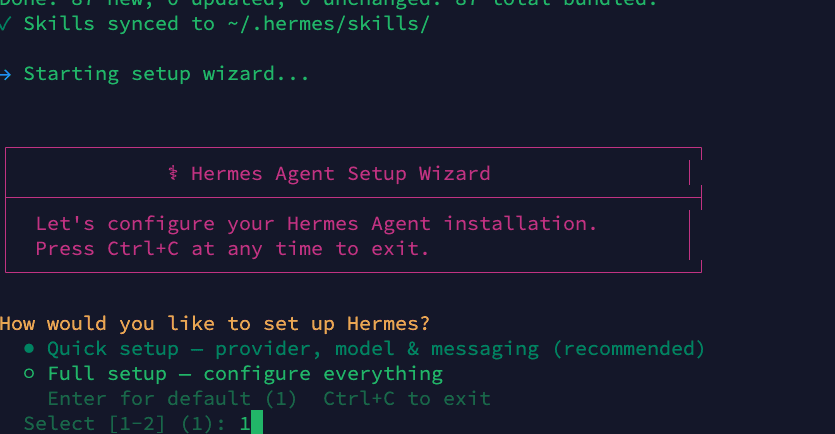
In this guide we use Quick setup, but Full setup works the same way — it just includes additional configuration steps.
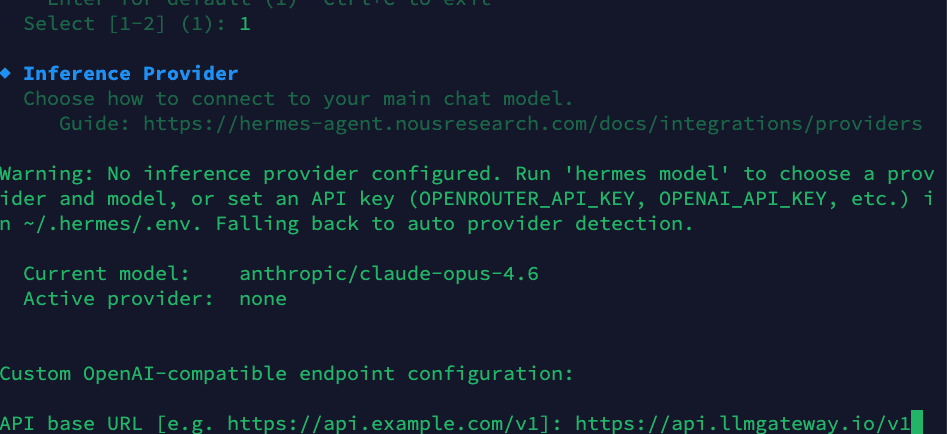
Configure Inference Provider
The wizard will ask you to configure your inference provider. Select Custom OpenAI-compatible endpoint and enter the LLM Gateway base URL:
API base URL: https://api.llmgateway.io/v1Then paste your LLM Gateway API key (starts with llmgtwy_):
Choose a Model
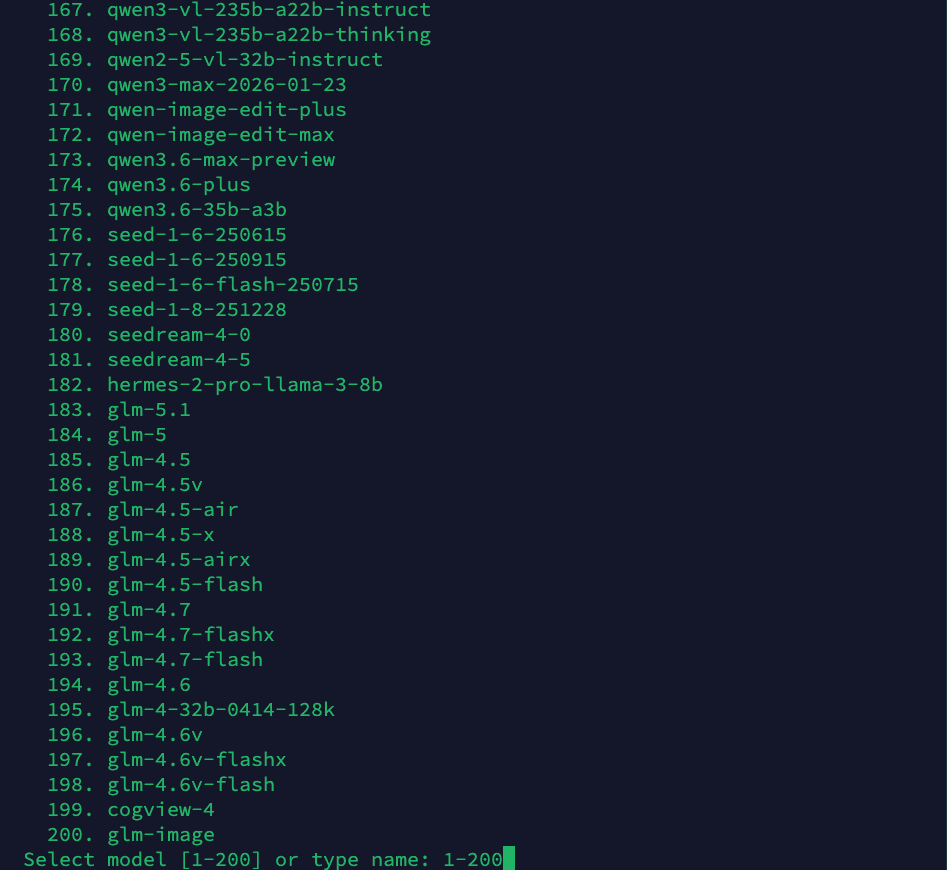
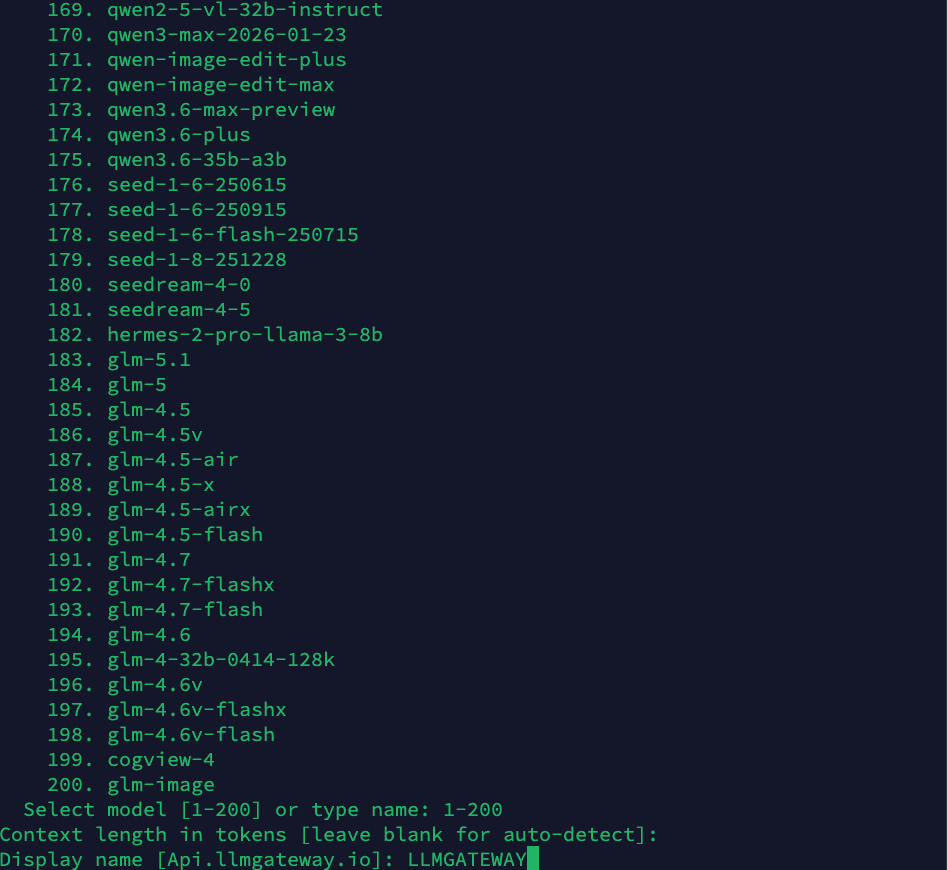
The wizard presents a list of 200+ available models. Type a model name or select from the list. Popular choices include claude-sonnet-4-6, gpt-5.5, or gemini-3.1-pro:
Set Context Length
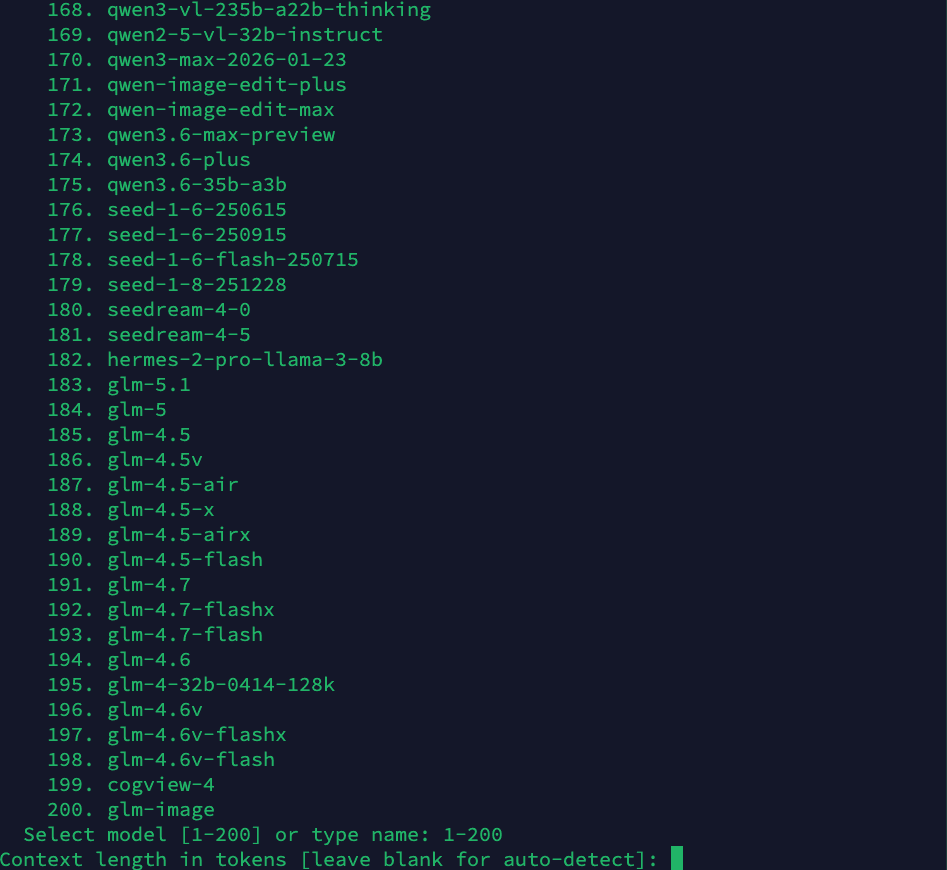
Leave the context length blank to auto-detect (recommended), or specify a custom value:
Set Display Name
Give your provider configuration a display name. This appears in the Hermes status bar when chatting:
Select Terminal Backend
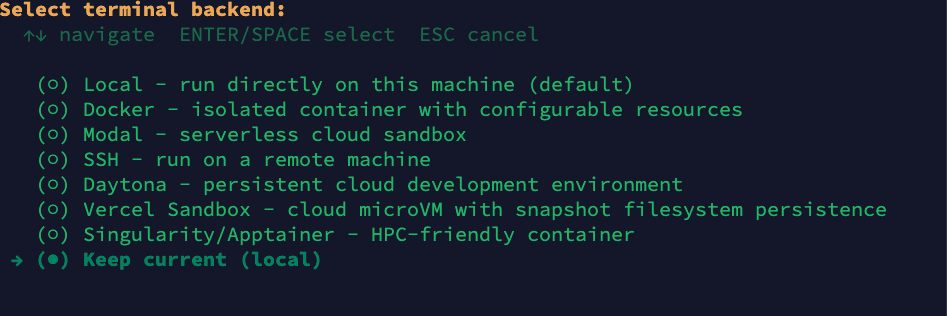
Choose your terminal backend. In this guide we use Local (run directly on this machine), but you can pick any option based on your requirements — Docker for isolated containers, SSH for remote machines, Modal for serverless sandboxes, Daytona for cloud dev environments, and more:
Setup Complete
Once done, Hermes shows you where your config files are stored and how to edit them. It will prompt "Launch hermes chat now? [Y/n]" — press Y to start an interactive agent session immediately:
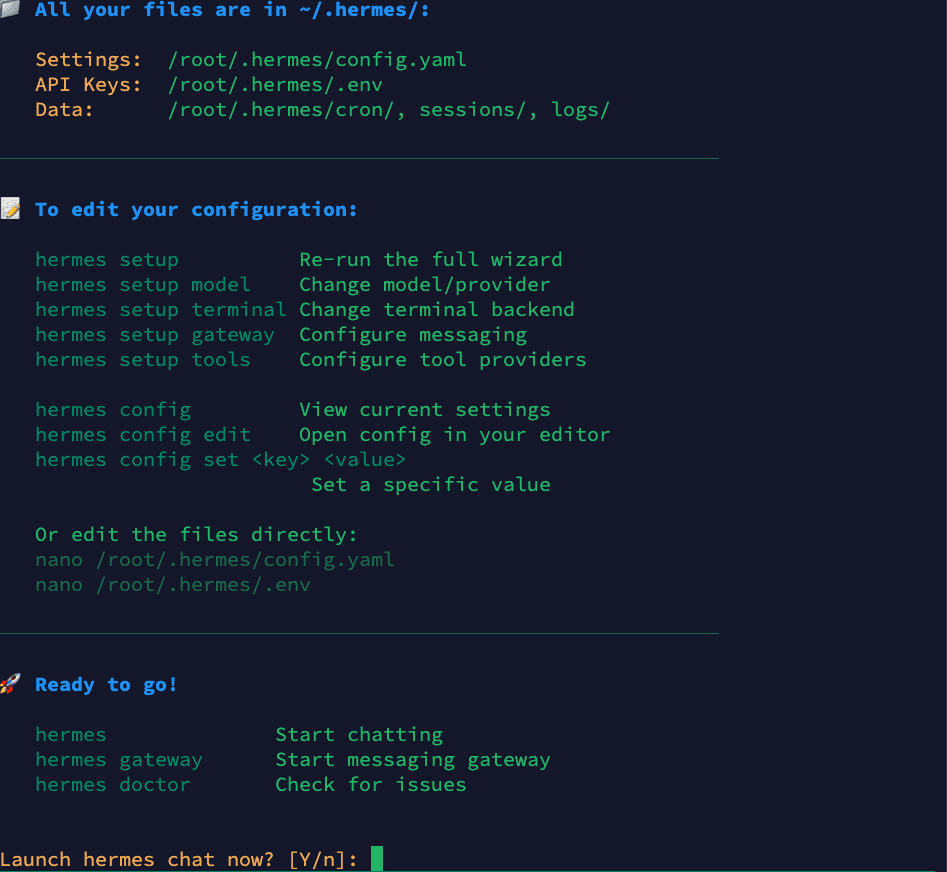
Your configuration files:
- Settings:
~/.hermes/config.yaml - API Keys:
~/.hermes/.env - Data:
~/.hermes/cron/,sessions/,logs/
Once you press Y, Hermes launches a full agent session connected to LLM Gateway. You can start chatting right away.
Using Hermes with LLM Gateway
Once configured, all requests route through LLM Gateway. You'll see the provider name (e.g., "LLMGATEWAY") in the Hermes status bar.
Switching Models at Runtime
You can switch models mid-session using the /model slash command (similar to how Claude Code uses slash commands). Just type /model followed by the model name:
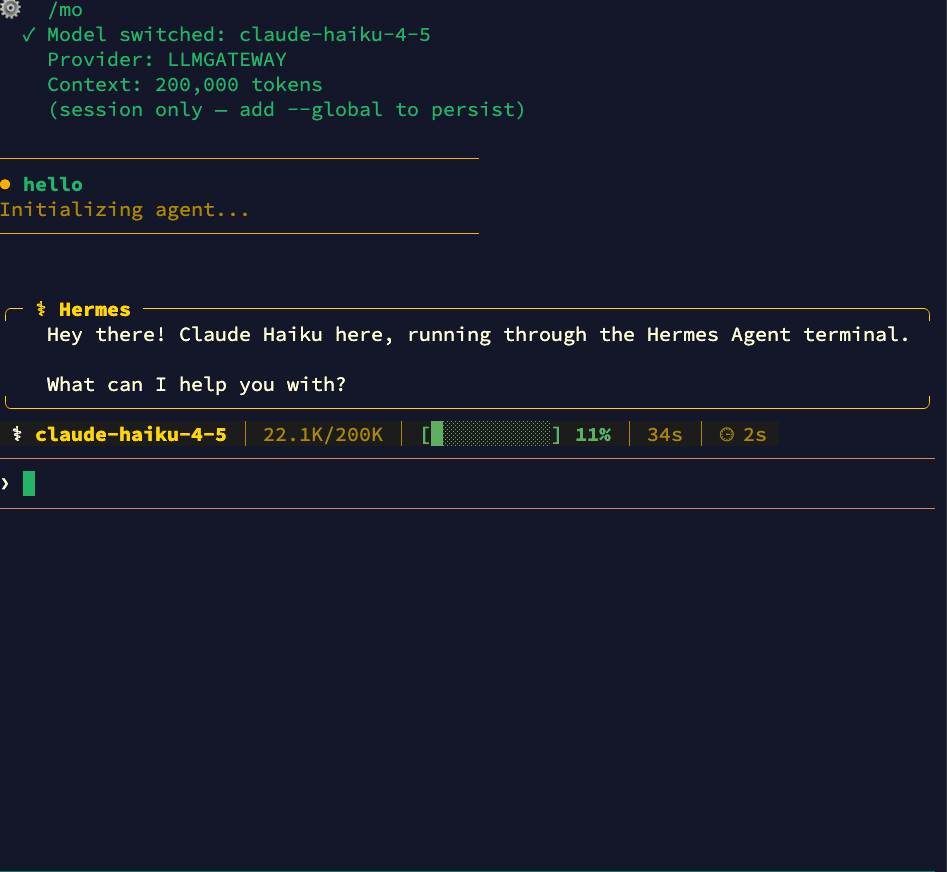
Switch to any model available through LLM Gateway — from Claude to GPT to open-source models — without leaving your session:
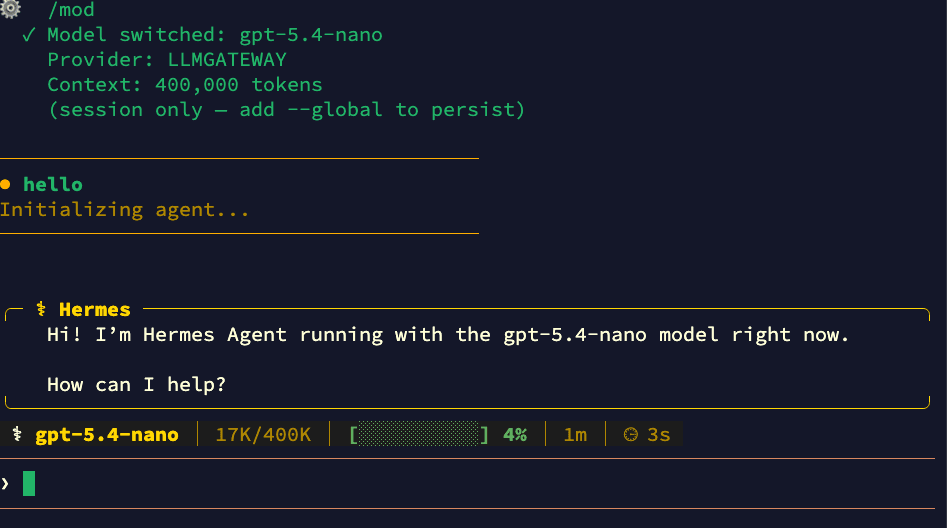
Add --global to persist the model change across sessions.
CLI Model Override
You can also override the model from the command line:
# Use a specific model for this session
hermes chat --model gpt-5.5

# Use a powerful model for complex tasks
hermes chat --model claude-opus-4-6
Why Use LLM Gateway with Hermes Agent
- 210+ models — Claude, GPT, Gemini, Llama, DeepSeek, and more
- One API key — Stop managing separate keys for each provider
- Cost tracking — See exactly what each session costs in your dashboard
- Response caching — Repeated requests hit cache automatically
- Automatic fallback — If a provider is down, requests route to an alternative
- Volume discounts — Check discounted models for savings up to 90%
One-Shot Mode
For scripting or CI pipelines, use the -q flag for a one-shot prompt:
hermes chat -q "Explain what this function does" -QThe -Q flag enables quiet mode, suppressing the banner and spinner for clean output. For pure one-shot mode (no interactive session):
hermes chat -z "Generate a README for this project"Useful Hermes Commands
| Command | Purpose |
|---|---|
hermes | Start interactive chat (default) |
hermes setup | Run the setup wizard |
hermes setup model | Change model/provider |
hermes chat -q "..." | One-shot prompt |
hermes model | Choose provider and model interactively |
hermes config edit | Open config in your editor |
hermes doctor | Diagnose connection/config issues |
hermes sessions | Browse and manage past sessions |
hermes --continue | Resume most recent session |
hermes update | Update to latest version |
Locking to a Specific Provider
By default, LLM Gateway automatically fails over to alternative providers if your chosen provider is experiencing downtime. To disable fallback and always route to one provider, you can add the header via Hermes's request configuration.
Disabling fallback means requests will fail if the chosen provider is down. See the routing docs for details.
Troubleshooting
Model not found
If you get a "model not supported" error, check that your model ID matches exactly what's listed on the models page. Model IDs are case-sensitive.
Connection timeout
Verify your base_url is set to https://api.llmgateway.io/v1 (note the /v1 at the end). You can also check the HERMES_API_TIMEOUT environment variable if you're hitting timeouts on long-running requests.
Authentication errors
Make sure your api_key starts with llmgtwy_ and is valid. Check your dashboard to confirm the key is active.
Diagnosing issues
Run hermes doctor to check your configuration, connectivity, and credentials:
hermes doctorOld config overrides
If you previously used a different provider (e.g., OpenRouter), make sure to update both provider and base_url fields. The provider must be set to "custom" for LLM Gateway. Also check ~/.hermes/.env for any leftover OPENROUTER_API_KEY or other provider keys that might take precedence.
View all available models on the models page.
Need help? Join our Discord community for support and troubleshooting assistance.
How is this guide?
Last updated on