Pi Integration
Use any model with Pi coding agent through LLM Gateway — GPT-5.5, Gemini, Claude, DeepSeek, and 200+ others in your terminal.
Pi is a minimal terminal-based coding agent that gives an AI full access to read, write, edit, and run shell commands in your project. By pointing Pi at LLM Gateway, you can use any of our 200+ models — GPT-5.5, Gemini 3.1 Pro, Claude Opus 4.7, DeepSeek V4, and more — with full cost tracking and caching.
Prerequisites
- An LLM Gateway account with an API key
- Pi installed (
curl -fsSL https://pi.dev/install.sh | bash) - Basic terminal familiarity
Setup
Pi uses a models.json configuration file to define providers and models. We'll add LLM Gateway as a custom provider.
Get Your API Key
- Log in to your LLM Gateway dashboard
- Navigate to API Keys section
- Create a new API key and copy the key
Configure Pi
Open (or create) the Pi models configuration file at ~/.pi/agent/models.json and add LLM Gateway as a provider:
{
	"providers": {
		"llmgateway": {
			"baseUrl": "https://api.llmgateway.io/v1",
			"api": "openai-completions",
			"apiKey": "llmgtwy_your_api_key_here",
			"models": [
				{ "id": "gpt-5.5", "name": "GPT-5.5" },
				{ "id": "claude-opus-4-7", "name": "Claude Opus 4.7" },
				{ "id": "gemini-3.1-pro", "name": "Gemini 3.1 Pro" },
				{ "id": "deepseek-v4", "name": "DeepSeek V4", "reasoning": true }
			]
		}
	}
}
Replace llmgtwy_your_api_key_here with your actual API key from Step 1.
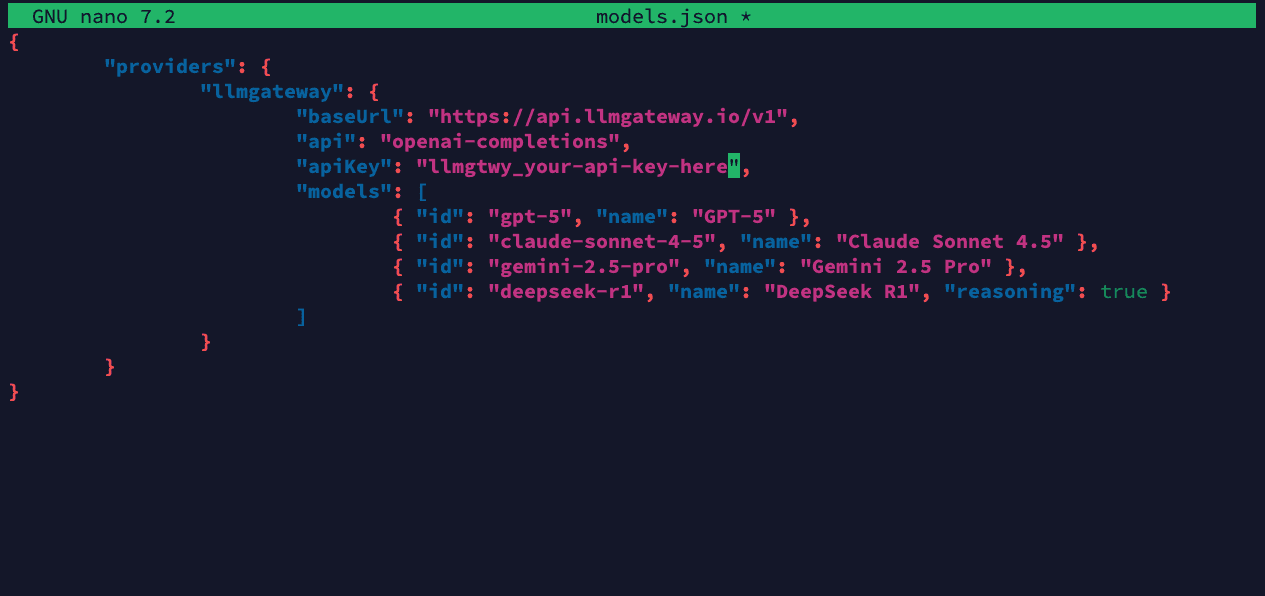
Pi reloads models.json when you open the /model menu — no restart needed
after editing.
Select Your Model
- Run
piin any project directory - Type
/modelto open the model selector - Select your LLM Gateway model from the list
All requests now route through LLM Gateway with full cost tracking.
Test the Integration
Ask Pi to do something in your project to verify everything works:
> hello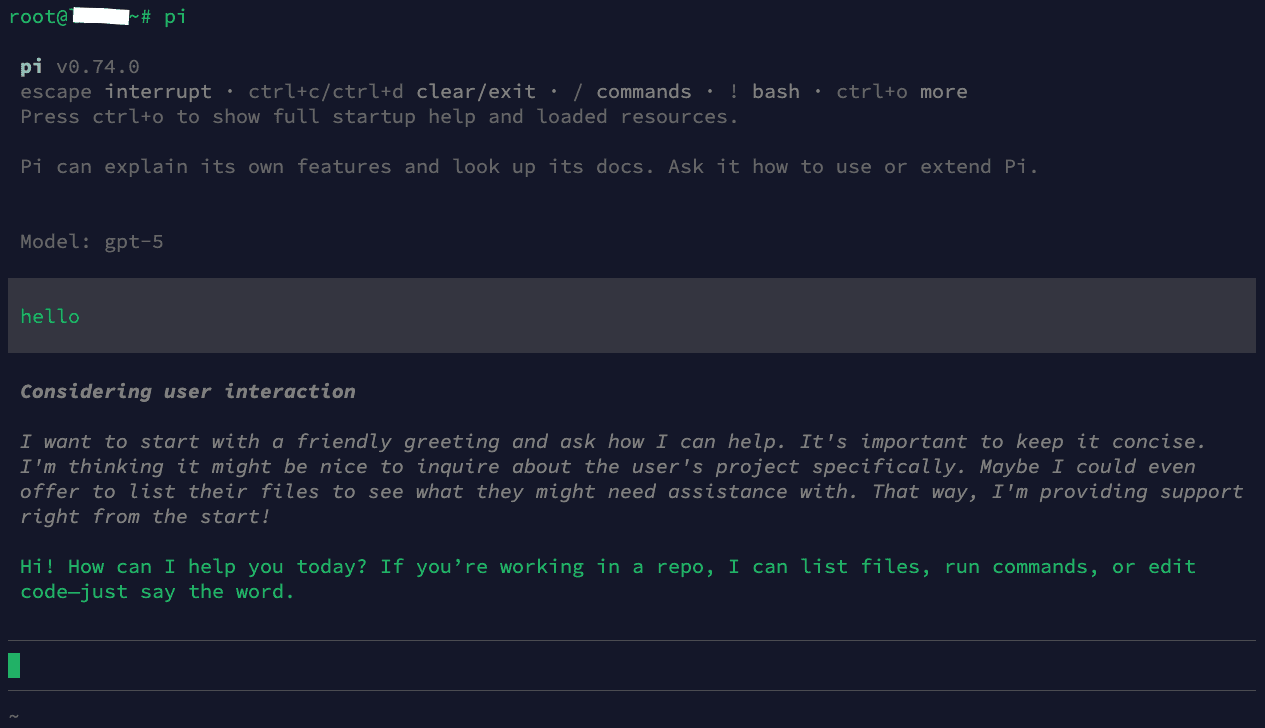
You should see the response streaming from your chosen model. Check your LLM Gateway dashboard to confirm the request appears in your usage logs.
Adding More Models
You can add any model from the LLM Gateway models page to your models.json. Just add entries to the models array:
{
	"providers": {
		"llmgateway": {
			"baseUrl": "https://api.llmgateway.io/v1",
			"api": "openai-completions",
			"apiKey": "llmgtwy_your_api_key_here",
			"models": [
				{ "id": "gpt-5.5", "name": "GPT-5.5" },
				{ "id": "gpt-5.5-mini", "name": "GPT-5.5 Mini" },
				{ "id": "claude-opus-4-7", "name": "Claude Opus 4.7" },
				{ "id": "claude-sonnet-4-6", "name": "Claude Sonnet 4.6" },
				{ "id": "gemini-3.1-pro", "name": "Gemini 3.1 Pro" },
				{ "id": "gemini-3.1-flash", "name": "Gemini 3.1 Flash" },
				{ "id": "deepseek-v4", "name": "DeepSeek V4", "reasoning": true },
				{
					"id": "deepseek-v4-mini",
					"name": "DeepSeek V4 Mini",
					"reasoning": true
				}
			]
		}
	}
}
Using Environment Variables for the API Key
Instead of hardcoding your key, you can reference an environment variable:
{
	"providers": {
		"llmgateway": {
			"baseUrl": "https://api.llmgateway.io/v1",
			"api": "openai-completions",
			"apiKey": "LLM_GATEWAY_API_KEY",
			"models": [{ "id": "gpt-5.5", "name": "GPT-5.5" }]
		}
	}
}
Then set the variable in your shell profile:
export LLM_GATEWAY_API_KEY=llmgtwy_your_api_key_hereTroubleshooting
Authentication Errors
- Verify your API key is correct in
~/.pi/agent/models.json - Check that the base URL is set to
https://api.llmgateway.io/v1 - Ensure your LLM Gateway account has sufficient credits
Model Not Found
- Verify the model ID exists on the models page
- Model IDs are case-sensitive — copy them exactly as shown
Connection Issues
- Check your internet connection
- Ensure
apiis set to"openai-completions"(not"openai-responses") - Monitor your usage in the LLM Gateway dashboard
Need help? Join our Discord community for support and troubleshooting assistance.
Benefits of Using LLM Gateway with Pi
- Any Model: Use GPT-5.5, Claude Opus 4.7, Gemini 3.1 Pro, DeepSeek V4, or 200+ others
- Cost Tracking: Every Pi request appears in your dashboard with token counts and costs
- Caching: Repeated requests hit cache automatically, saving money
- One Key: Manage all providers through a single API key
- No Vendor Lock-in: Switch models by changing one line in your config
How is this guide?
Last updated on